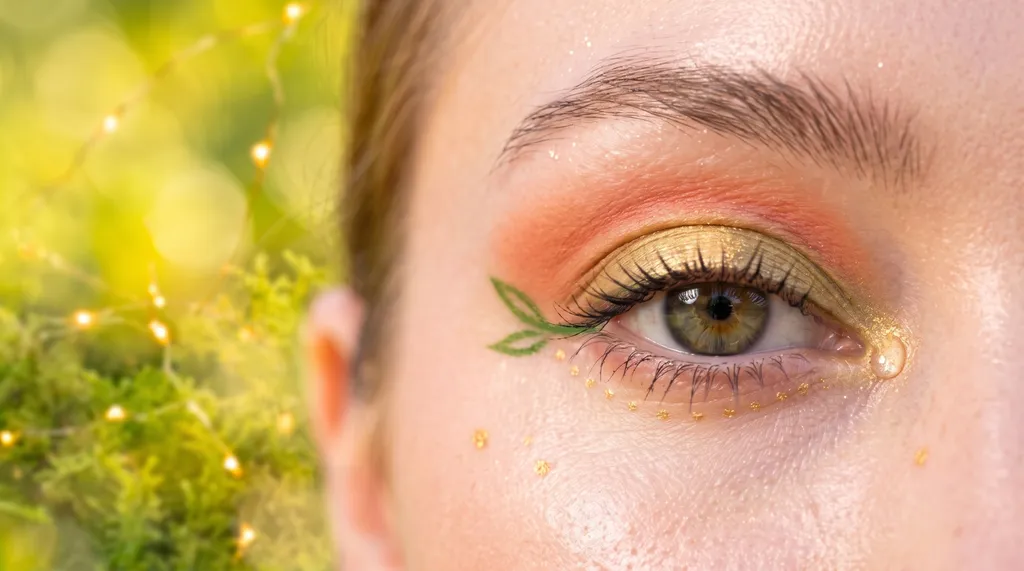
You know the moment. You are scrolling, and there it is: a smoky green eye, a sharp graphic wing, a soft fairy shimmer you cannot stop looking at. You screenshot it. And then the doubt starts. Would that actually work on your eyes? With your coloring? Is it worth twenty minutes of blending to find out?
You no longer have to guess. BeautySpark has two new features built for exactly this:
- Try a look from a photo takes the makeup from any photo, or from any look in our guides, and puts it on your own selfie, fitted to your features. You see the look on you before you pick up a brush.
- My Looks is your personal makeup recipe book. Do your makeup, snap a selfie, add the products and steps you used, and save it. Next time, Do this look walks you through recreating it one step at a time, so it comes out the same way again.
Both are live in the iOS and Android app today.
Get BeautySpark and see any look on youTry a look from a photo
Most makeup inspiration shows someone else's face: a screenshot from social media, a magazine page, a friend's wedding makeup, a look in one of our guides. The look is beautiful on them. The real question is how it would sit on you, and until now the only way to find out was to try it, wipe it off, and try again.
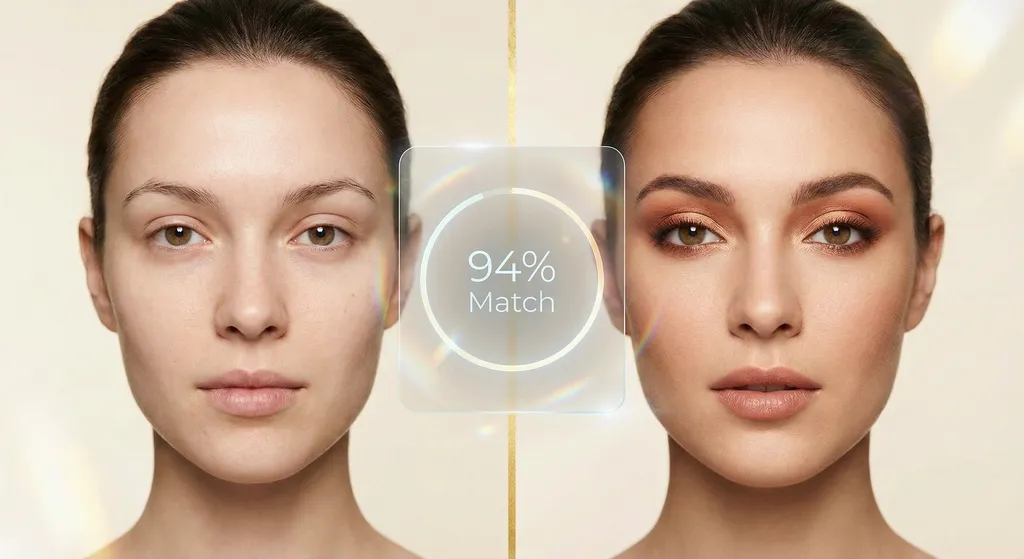
Try a look from a photo answers that question in one generation. Give BeautySpark a reference photo and a selfie, and it renders the makeup from the reference on your face: the eye look, plus any blush, lip color, and drawn details like freckles or gems the photo shows. Everything lands on your own features. Eye color goes on the lid you actually have, lip color follows your own lip line, and blush sits on your own cheeks.
That means no more wasted mornings on a look that was never going to suit you, and no more saving looks you are too unsure to try. If it works on you, you know before you start. If it does not, you lost nothing but a few seconds.
You can start right from the home screen, where the new Try a look from a photo card sits at the top.
Bring inspiration from anywhere
Tap the card and choose where your reference comes from:
- Choose from Gallery for that screenshot you saved weeks ago.
- Take Photo to capture something in front of you, like a page in a magazine.
- Pick a look from an article to choose from the looks published in BeautySpark guides.
The reference photo is sent to our AI together with your selfie so the makeup can be recreated. Please only use photos you have the right to use.
The best references show one face clearly with the makeup visible. Group photo? No problem: BeautySpark finds up to three faces and asks which one you mean. If it cannot find a face at all (an illustration or a product flat lay, for example), it asks you for a different photo.
"Try this look on me" in our guides
Reading one of our guides and falling for a look? Every wearable look in a BeautySpark guide now carries a Try this look on me badge in the corner of the photo. Tap it while you read in the app, and that look goes straight into the flow with your selfie. From "I love that" to "here it is on me" in a couple of taps.
In the mood to browse instead? Pick a look from an article opens Looks from our articles: every look from our guides in one grid, ready to try on. Search it or filter by article, from our 2016 makeup revival looks to the fairycore looks and the smoky eye for every color season.
Reading on the website instead of the app? The same looks show a Try this look badge. Tap it to see how the feature works and get the app.
Keep the original colors, or make them yours
Before generating, the confirm screen shows your reference next to your selfie and gives you a choice:
- Keep the original colors recreates the reference shades and finish exactly as they are. Pick this when you want to see that look, as is, on you.
- Adapt to my coloring keeps the same placement and finish, and shifts the shades toward what suits you, based on your undertone, color season, and eye color. Same look, colors chosen for you.
This is the part that changes how you use inspiration. A look that was made for someone with completely different coloring is no longer off limits. Keep the shape you love and let BeautySpark pick the shades that flatter you.
Adapting the colors needs a color analysis for the person in the selfie. If there isn't one yet, BeautySpark runs it as part of the generation, so your first adapted look takes a little longer. Keeping the original colors does not need an analysis.
Pro Tip
Try both options on the same reference. A look you love on someone else can come out much closer to your own coloring with the adapted shades, and seeing the two results side by side shows you which part of the look you actually liked: the colors or the shape.
What you get back
Your result opens like any other BeautySpark generation. Drag the slider to compare your selfie with and without the makeup, and see your new look's name and difficulty level so you know what you are signing up for.
When the reference comes from one of our guides, you also get an Inspired by card that links back to the article, along with the steps and shades the article gives for that look. So you go from "that looks great on me" straight to "here is how to do it." Looks from your own photos come with a written description of the makeup. Step-by-step instructions are available for looks from BeautySpark articles.
A look from a photo uses the same credits as any other generation, and like the rest of BeautySpark, it requires a subscription.
My Looks: never lose a great look again
You finally nail a look. Everyone compliments it, it lasts all night, and you feel amazing. Two weeks later you try to recreate it and cannot remember which shade went in the crease, which liner you smudged, or what made it hold up so well.
My Looks fixes that. It is your own collection of the looks you create, with everything you need to do them again, and it has its own tab in the app's bottom navigation. Saving a look is simple:
- Do your makeup the way you love it.
- Snap a selfie wearing the look. That becomes its cover photo.
- Add the products you used and the shades you picked from each one.
- Add your steps in the order you did them.
- Save it.
That's it. The look is in your pocket, written down exactly the way you did it.
Do this look: recreate it step by step
This is where My Looks really shines. Open any saved look, tap Do this look, and BeautySpark turns your steps into a guided walkthrough, one step per screen, so recreating a look is as easy as following a recipe.
It is made to be read from a phone propped against your mirror while you hold a brush:
- One step at a time, in large text, with a "Step 3 of 7" counter so you always know where you are.
- The step's own photo, if you added one, or a close-up of the eyes from your cover photo, so you can check your progress against the finished look.
- Exactly what to use: the products and shades for that step, plus the area of the face, the technique, the intensity, the position (such as the crease or the outer V), the tools, and how long it takes.
- Swipe or tap Next to move on, Previous to go back, and Done when you finish.
- The screen stays on the whole time, so your phone never locks while your hands are busy.
No more squinting at notes or scrolling back through old photos mid-blend. You follow your own instructions, in your own order, with your own products, and the look comes out the way it did the first time.
Pro Tip
The first time you do a look you want to keep, take a quick photo after each step. Step photos show up in Do this look, so next time you can check each stage against how it looked the first time.
Everything that made the look work, in one place
Each saved look can hold:
- Photos: a cover photo of you wearing the look, plus a before photo and the photo that inspired it.
- The basics: a title, notes on what made it work, and a link to the inspiration if it came from a video or a post.
- Products: each product you used, with its type and the shades you used. Type them in, or link a palette you have already added to BeautySpark or one from the popular palettes list, so you never retype shade names.
- Steps, in order: what you did, where on the face (base, brows, eyes, lashes, cheeks, lips), and for eye steps, the exact position, such as the lid, the crease, or the outer V. Each step can also note the technique, tools, intensity, and time it took, the products it used, and a photo of its own.
- Ways to find it again: categories, your own tags, occasions, intensity, difficulty, total time, and a favorite flag.
Short on time? A photo and a title is enough. The form has a simple mode for a quick save and an advanced mode for full detail, and the products and steps pages can be skipped. Got interrupted halfway through? BeautySpark offers to resume your draft next time you open the app.
Find the right look in seconds
Getting ready for a wedding, a date, or a Monday meeting? Open My Looks and your options are right there. The grid shows your cover photos with a search bar, a favorites filter, and your categories and tags. BeautySpark comes with ready-made categories such as Everyday, Work, Date night, Wedding guest, Festival, Smokey eye, and Natural glow, and you can add your own. Rename or remove your tags and categories at any time.
Want a twist on a look you already love? Duplicate it and play with the copy, and the original stays exactly as it was.
Save a generated look in one tap
This is where the two features click together. When you love a look BeautySpark generated, including one from a reference photo, tap the bookmark on the result to save it to My Looks. The generated image stays on the look, and once you have done the makeup yourself, you can add a selfie of the real thing as the new cover.
Private, and yours to export
Your saved looks are private to your account, and nothing in My Looks is shared. Saving a look does not use credits. My Looks is part of the BeautySpark subscription. If your subscription ends, you can still open, search, and export your looks for 30 days before they are deleted.
Start saving your own looks in the BeautySpark appFrom screenshot to signature look
On their own, each feature saves you time. Together, they take you from a photo you liked to a look you can repeat whenever you want:
- Spot a look you love, in a photo or in one of our guides.
- See it on your own selfie, in the original colors or adapted to yours.
- Do the makeup yourself, following the steps if the look came from one of our guides.
- Save it to My Looks with a selfie of you wearing it, the products you used, and your steps.
- Next time, open it, tap Do this look, and follow along step by step.
No guessing and no scrolling back through screenshots. The shades and steps are already written down, waiting for you.
Frequently Asked Questions
Discover Your Perfect Eye Look
Get your first AI-personalized look in under 5 minutes.